

Get started with kbagent
A guided first run of the kbagent CLI — install it, connect a Keboola project, verify with doctor, and run your first read commands. Plus multi-project and organization setup.
This walkthrough takes you from nothing to browsing a real project with kbagent in a few minutes. Follow it top to bottom for a single project; the Connect more section covers multi-project and organization setup.
Step 1 — Install
Section titled “Step 1 — Install”Pick your operating system:
Recommended — the prebuilt wheel via the install script:
curl -LsSf https://raw.githubusercontent.com/keboola/cli/main/install.sh | shAlternative — uv, if you want to pin to a version or uninstall cleanly:
uv tool install "git+https://github.com/keboola/cli"Recommended — the prebuilt wheel via the install script:
curl -LsSf https://raw.githubusercontent.com/keboola/cli/main/install.sh | shAlternative — uv, if you want to pin to a version or uninstall cleanly:
uv tool install "git+https://github.com/keboola/cli"Recommended — uv in PowerShell, the one supported native path on Windows (install uv first if you don't have it):
uv tool install "git+https://github.com/keboola/cli"Whichever method you use, kbagent keeps itself current with its own startup update check (kbagent update runs one manually).
Confirm it's on your PATH (all platforms):
$ kbagent --versionkbagent v0.66.0Step 2 — Connect your project
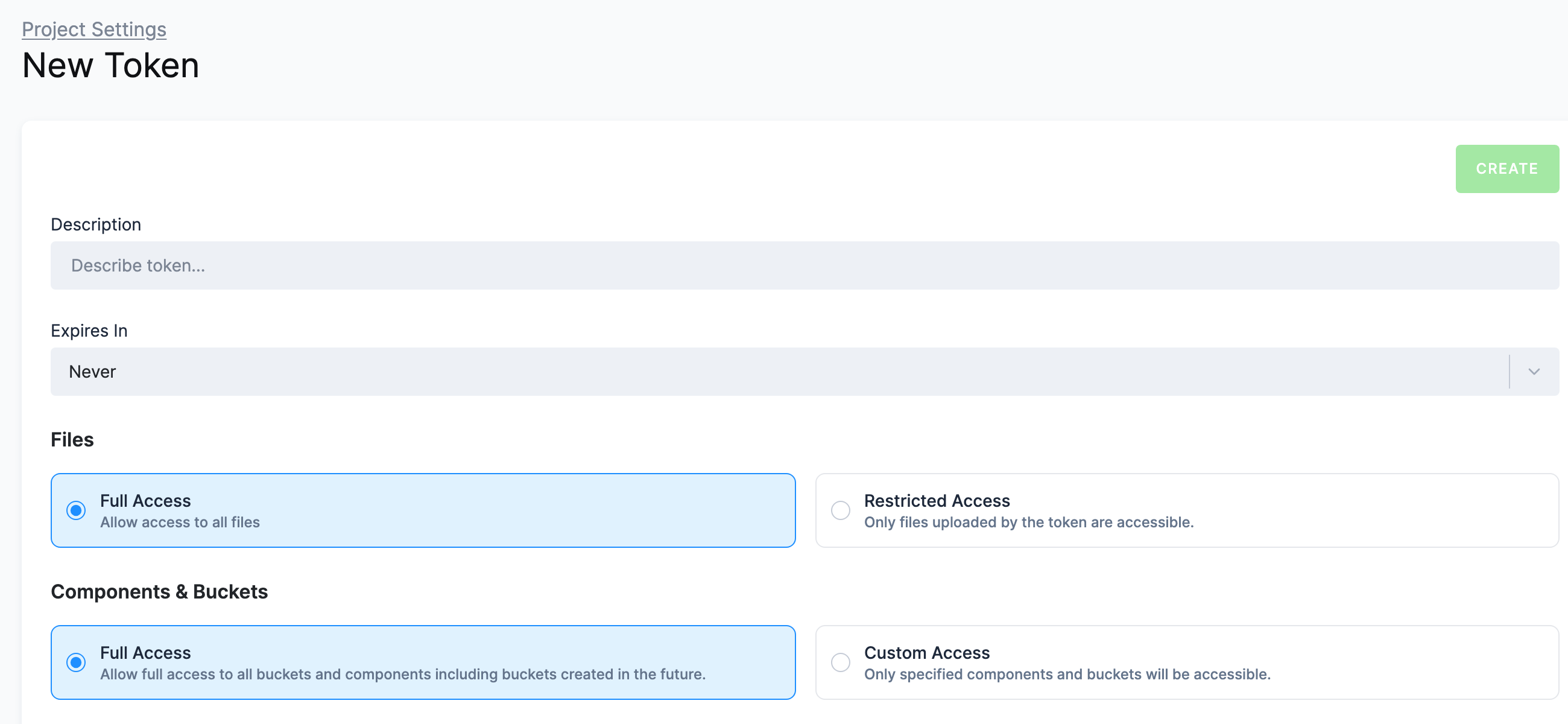
Section titled “Step 2 — Connect your project”For one project you need a Storage API token and your stack URL. To create the token, open your project in the browser and go to Project Settings → API Tokens → New Token: give it a description, pick Full Access (you can scope it down later), and click Create — then copy the token right away, it's shown only once.
kbagent project add --project prod \ --url https://connection.keboola.com --token YOUR_TOKENprod is an alias you pick — you'll use it with --project later, or set it as the default with kbagent project use prod.
A Storage API token is enough for browsing. Some commands need an admin (master) token — token create requires the canManageTokens permission, and creating branches or workspaces needs admin privileges. Token types and scoping options are covered in API tokens.
Step 3 — Verify the connection
Section titled “Step 3 — Verify the connection”kbagent doctor checks your configuration and connectivity. Once a project is connected it confirms the link and flags anything else worth doing (like installing the agent plugin):
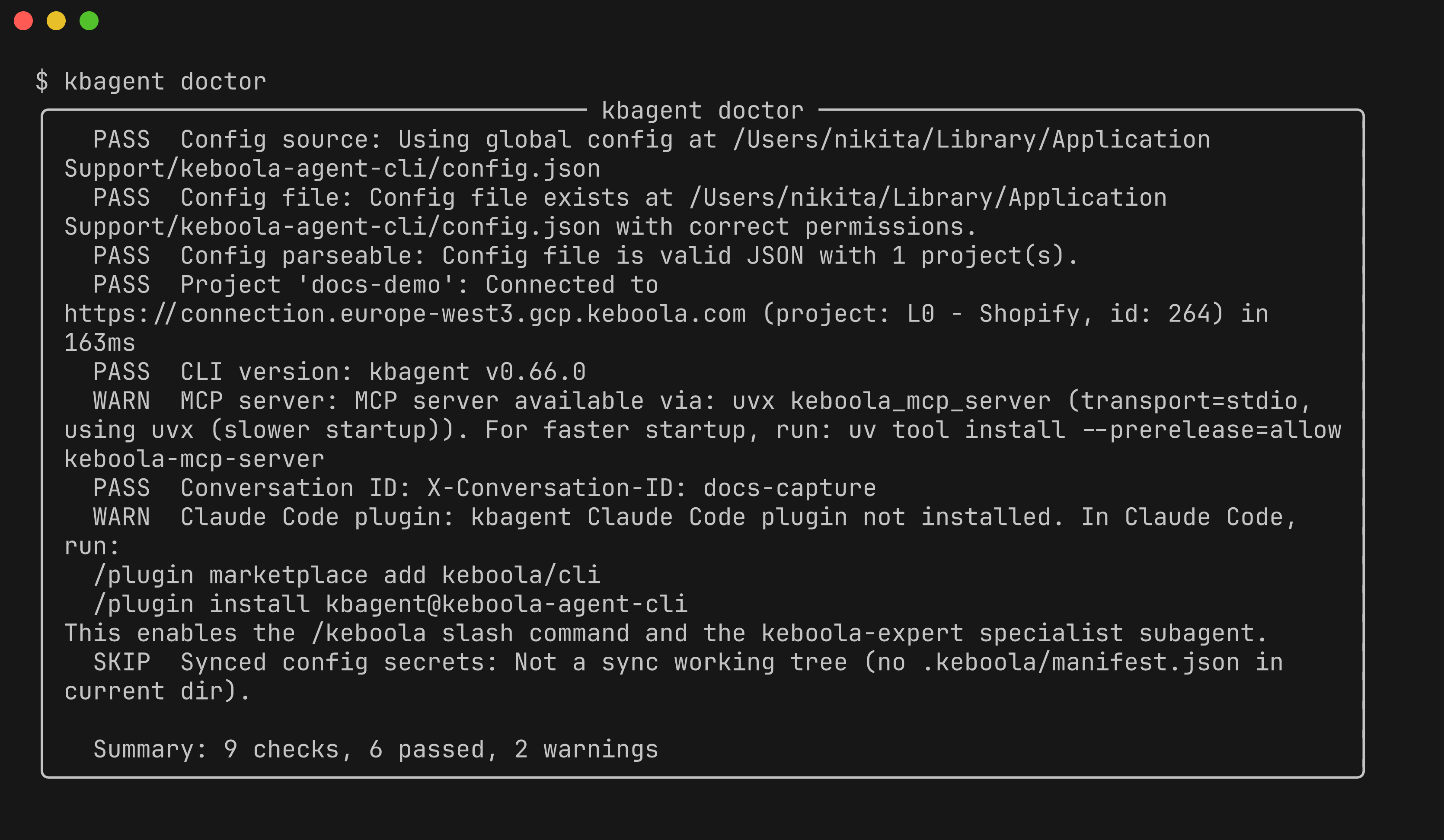
You can also test connectivity on its own with kbagent project status.
Step 4 — Browse the project
Section titled “Step 4 — Browse the project”Explore what's there. Recent jobs:
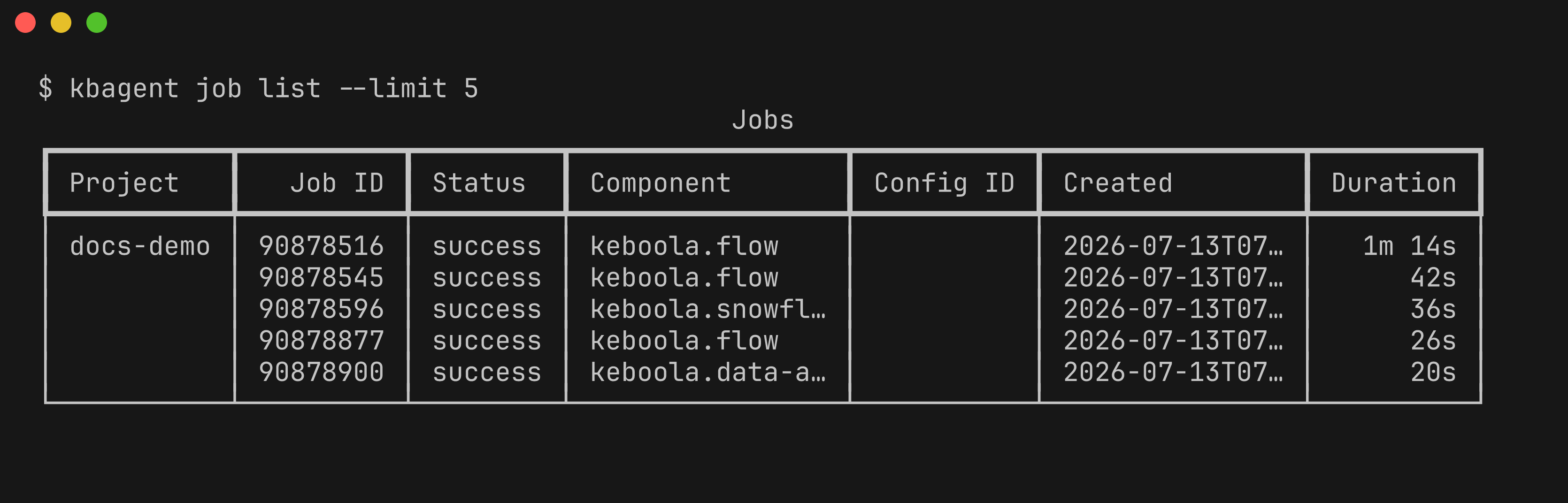
kbagent job list --limit 5 # recent jobs (shown above)kbagent project list # connected projectskbagent config list # configurations across all connected projectsStep 5 — Search
Section titled “Step 5 — Search”Find configs, tables, buckets, and flows by name or content:
kbagent search "shopify"Step 6 — Go further
Section titled “Step 6 — Go further”-
Add
--jsonto any command for machine-readable output — this is what an AI agent consumes. -
Set a conversation ID when an agent drives kbagent, so platform observability can correlate the session (adds an
X-Conversation-IDheader):Terminal window export KBAGENT_CONVERSATION_ID="<unique-id>"
Connect more projects
Section titled “Connect more projects”Several projects — register each with its own Storage token (project add), or bulk-onboard with a Manage API token:
KBC_MANAGE_API_TOKEN=xxx kbagent --allow-env-manage-token \ org setup --project-ids 901,9621 --url https://connection.keboola.com --yesA whole organization (org admin) — kbagent registers every project and mints per-project tokens:
KBC_MANAGE_API_TOKEN=xxx kbagent --allow-env-manage-token \ org setup --org-id 123 --url https://connection.keboola.com --yesRead commands then fan out across every connected project — see multi-project.
Something failing along the way? The Troubleshooting page covers the most common errors and their fixes.
Next: How kbagent works →